Kepler's Third Law


Tycho Brahe spent decades using the best instruments of his time to measure planetary positions with great accuracy. When he died, he left his collection of observations to his assistant, Johannes Kepler. After reducing and analyzing the measurements, Kepler was able to recognize three common principles which governed the motions of the planets. First, the orbits of the planets are ellipses. Second, the line joining a planet to the Sun sweeps out equal areas in equal times. Third, there is a relationship between the size of a planet's orbit and the time it takes to revolve around the Sun.
What is that relationship? It seems obvious that planets which are far from the Sun should take longer to complete one revolution than those which are very close to the Sun. Jupiter, for example, has an orbit five times the size of the Earth's, and therefore should take longer to make one circuit. It does take longer… but not five times longer. The relationship between orbital size and orbital period isn't quite so simple.
After many years of work, Kepler figured it out. In rough terms, the square of a planet's orbital period is proportional to the cube of the orbital size. To be more exact, if we use "P" to measure the period of an orbit in years, and "a" the semi-major axis of the orbit (the radius along its long axis) in Astronomical Units, then Kepler's Third Law becomes simple: P-squared equals a-cubed.
This interactive gives you a chance to investigate Kepler's Third Law quantitatively. You can pick the shape and size of an orbit, then watch to see how long it takes to move around the Sun. You can even do something Kepler was never able to do: change the mass of the Sun and see what effect that has on the period of an orbit. Kepler's 3rd law was based on our Solar System and implicitly assumed the mass of the Sun was 1.
Not shown in this simulation: Isaac Newton later refined Kepler's 3rd law to read (M + m)p² = a³, where M and m are the mass of the Star and planet. Normally, for planets, m << M and planet mass has only a small effect, but because we can rewrite Newton's version as p² = a³ /(M + m), a large planet would have a slightly shorter period than a small planet for the same semi-major axis and Sun.
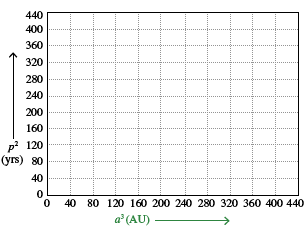
Your goal is to explore the relationship between the size of a planet’s orbit and the time it takes to complete that orbit, according to Kepler’s original 3rd Law. Select the key orbital parameters then set the planet in motion to plot points on a scatter plot graph with orbital period squared as the y axis and semi-major axis cubed as the x axis. Try plotting a few different orbits for the same solar mass, then try the reverse—keep the orbit size the same but change the mass of the star. What patterns do you notice?
There are several control options:
- Choose to plot one of the objects in our solar system, or adjust the settings for a custom planet.
- Adjust the Star’s Mass (and, therefore, the strength of the gravitational force pulling on the planet).
- Set the semi-major axis for your custom planet.
- Set the eccentricity of your custom planet’s orbit.
- Use the Play button to plot a point on the graph based on your current settings and to set the planet orbiting around the star.
- Pause the animation of the planet’s orbit at any time.
- Clear the graph of all the points you have plotted so far.
At any time, you can click on—or tab to— a point you have plotted to review its orbital parameters. Screen reader users: tab to a point in the graph to find out its location. You will reach the point you most recently plotted first, then the others in reverse chronological order.
Colors on the graph represent different ranges of stellar mass. From 0 through 1 solar mass is one color, from 1 through 2 solar masses is another color, etc. When the Mass of Star slider is set to a particular value, all points of that color on the graph are outlined so they stand out even more clearly. Use this color-coding to help you isolate the effects of a change in orbital size (look at all dots of the same color) from a change in stellar mass (look at all the dots in the same vertical position.)
If sound is on, higher tones indicate faster planetary movement and lower tones indicate slower movement. You can turn the sound off in the top of the window in the banner region.
Notes: The Sun and planets are drawn much larger than their true sizes, relative to the size of the orbit. The overall size of each orbit is measured along the longest radius. Remember: On a graph, if a series of points all fall on a straight, sloped line, it means the plotted quantities are proportional to each other such that y = kx. When the line has a 45 degree slope, the plotted quantities are equal to each other y = x.
Your goal is to set the parameters of a planet’s orbit which will plot points on a graph so that you can explore the relationship between the size of a planet’s orbit and the time it takes to complete that orbit. Pause the simulation to get the coordinates of your plotted point or tab to any of the points you have plotted to get their values. This simulation is divided into 4 regions:
- Title banner with the audio on/off and info buttons.
- Navigation options.
- Controls region where you can change the Mass of the Star and the orbit’s semi-major axis (radius) and eccentricity.
- Graph region where you can explore the points you have plotted.
Visit the How To tab for details.
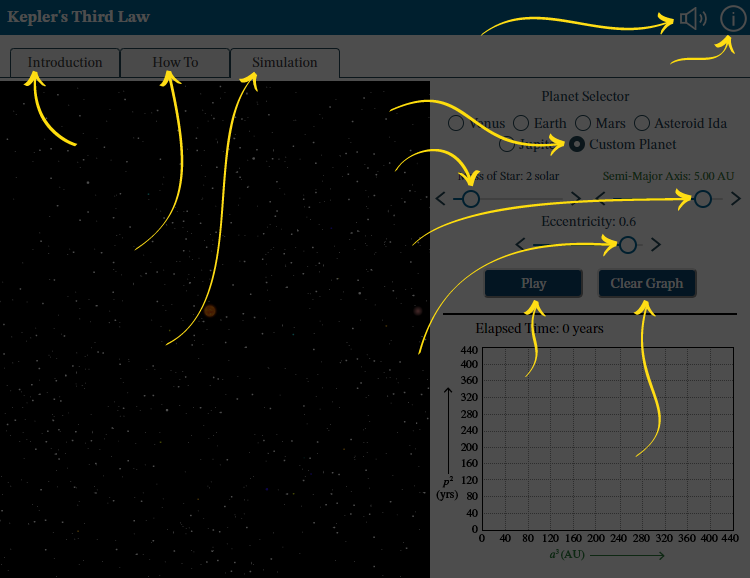
Audio: Turn sounds off or on. See How To tab for details on what the sounds indicate.
Information: Reopen this overview screen.
Introduction tab contains background information about the subject of the simulation.
How To tab contains detailed information about how to use the simulation.
Simulation tab contains the simulation.
Planet Selector: Choose the planet that will orbit the star.
Mass of Star: Adjust the value using the left and right arrows or by dragging the circle.
Semi-Major Axis: Adjust the value using the left and right arrows or by dragging the circle. Only adjustable when Custom Planet is selected.
Eccentricity: Adjust the value using the left and right arrows or by dragging the circle. Only adjustable when Custom Planet is selected.
Play or Pause: Start and stop the action in the simulation.
Use Clear Graph to remove all plotted stars and start again.
